
In today's rapidly evolving technological landscape, many users and professionals often ask: Is it possible to use a standard USB flash drive as a primary hard drive or system disk? The short answer is yes—technically feasible. However, the long answer is far more nuanced. Whether this setup is advisable depends on a critical interplay of hardware compatibility, software support, data endurance, and realistic performance expectations.
Unlike laptop processors, these are strictly desktop considerations. This guide goes beyond the basics, combining general principles with deep technical insights from hardware experts, memory manufacturers, and operating system documentation, to provide a definitive resource on this topic.
Evaluating this setup requires more than just plugging in a drive. Modern computing environments emphasize OS compatibility, BIOS/UEFI support, and the physical limitations of flash memory. For power users, professionals, and system builders, understanding the risks and rewards of using USB flash memory as a system drive is crucial.
Can It Be Done? The Veredict

What it's for: Modern operating systems (Windows, macOS, and Linux) are fully capable of recognizing and booting from external USB storage. However, the hardware you choose dictates whether the result will be a functional tool or a short-lived experiment.
Who it's for: System administrators, tech enthusiasts, and users needing portable OS environments.
What to expect: High portability at the cost of performance and hardware lifespan.
- Technical feasibility: The technology to run an OS from a USB has existed for years (e.g., Windows To Go, Linux Live USB).
- Resource availability: The required tools (Rufus, Ventoy, or native OS tools) are free and widely accessible.
- Expertise: While the initial setup is user-friendly, a basic understanding of BIOS/UEFI boot orders and partition management is essential.
Which Operating Systems Are Supported?

What it's for: Support varies significantly across operating systems, and this affects how you approach the setup.
Who it's for: Users working across Windows, macOS, and Linux environments.
What to expect: Linux offers the most flexible and reliable USB booting experience.
- Windows: Highly supported for "secondary storage" (D:\ drives for data or games). For OS installations, Microsoft limits native "Windows To Go" to Enterprise and Education editions. However, third-party tools like Rufus can create bootable Windows installations on USB for general use, though they lack Microsoft's official long-term optimization for flash memory.
- macOS: Apple has deprecating support for external boot drives in recent Silicon (M1/M2/M3) Macs, making it highly restrictive. Pre-2020 Intel Macs generally support booting from USB drives.
- Linux: The most flexible and reliable option. Most distributions (Ubuntu, Fedora, Debian) are optimized to run from a USB drive with persistent storage. Linux offers superior wear-leveling management and allows users to disable unnecessary system writes, prolonging the drive's life.
Compatibility considerations:
- BIOS/UEFI: You must ensure your PC supports booting from external USB devices (most modern boards do).
- Driver dependencies: USB 3.0/3.2 drivers are crucial for performance. Older motherboards may throttle speeds.
Advantages

What it's for: Implementing a USB-based system setup offers several distinct benefits for flexibility and security.
Who it's for: Freelancers, IT pros, and secure workspace users.
What to expect: A portable, isolated computing environment.
- Cost Savings: Repurposing an older, high-capacity USB drive is cheaper than buying a new internal SSD.
- Portability & Flexibility: You can carry your entire operating system, tools, and personal files in your pocket and run them on any compatible PC.
- Sandboxing & Security: A USB-driven OS acts as an isolated environment. Ideal for testing software or performing forensic recovery on a compromised host PC without risking the host's data.
- Emergency Recovery: If your primary internal drive fails, a USB system drive can be a lifesaver, allowing you to access the internet, backup critical files, and repair the main OS.
Disadvantages (The Technical Reality Check)

What it's for: Technical experts across major forums and hardware review sites (Tom's Hardware, AnandTech, Stack Exchange) agree on severe limitations.
Who it's for: Users who need to understand the risks before proceeding.
What to expect: Significant performance bottlenecks and reduced hardware lifespan.
- Performance Bottlenecks: Even the fastest USB 3.2 flash drives peak around 150–400 MB/s. In contrast, internal SATA SSDs hit 550 MB/s, and NVMe drives exceed 3,500 MB/s. Boot times and app launches will feel noticeably sluggish.
- Limited Endurance (The Wear Problem): Standard USB drives use NAND flash memory without advanced wear-leveling controllers. They are designed for occasional file transfers, not constant system writes. Running an OS from a USB means thousands of background writes (system logs, page files, cache, updates) occur daily. This can kill a common USB stick in weeks or months, as the memory cells degrade rapidly.
- Overheating: High-read/write loads generate significant heat. Unlike internal SSDs with heat sinks, USB drives are enclosed in plastic or thin metal, leading to thermal throttling that further degrades performance and lifespan.
Do All Motherboards Support It?
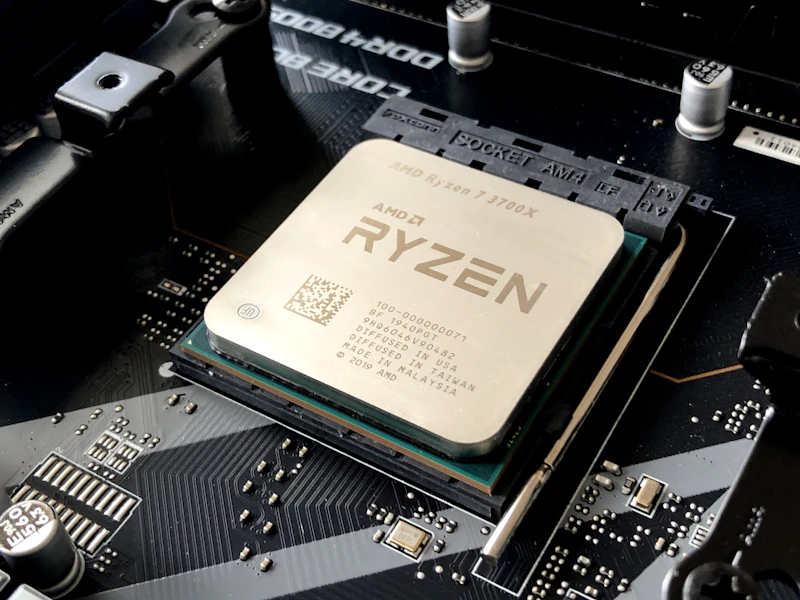
What it's for: Not all motherboards are created equal when it comes to external boot support.
Who it's for: Custom PC builders and upgraders.
What to expect: Enthusiast-grade boards offer the best flexibility.
- Chipset & BIOS/UEFI: Enthusiast and high-end motherboards usually offer full support for booting from external devices. However, some budget OEM boards (especially older ones) may lock the boot menu to internal drives only.
- USB Port Generation: To get acceptable performance, you must plug the USB into a USB 3.0 (blue), 3.1, or 3.2 port. USB 2.0 ports (black) are too slow for an OS to operate smoothly.
- Virtualization Support: If you plan to use a USB drive for Windows To Go, the motherboard must support the proper boot protocols; otherwise, the OS will fail to load the correct system drivers.
How Is It Done? The Implementation Process

What it's for: A step-by-step breakdown of the process, depending on your chosen path.
Who it's for: Users ready to undertake the project.
What to expect: A clear workflow from preparation to final testing.
- Research & Preparation (Critical Stage):
- Identify the use case: Are you doing this for an emergency tool (Linux) or a portable workstation (Windows)?
- Select the right hardware: Buy an external SSD drive (like Samsung T7 or SanDisk Extreme) in a USB-C enclosure. If you must use a standard USB, ensure it is USB 3.2 Gen 2 and uses MLC or TLC NAND chips, not the cheaper QLC chips which have the shortest lifespan.
- OS Installation (Software Configuration):
- Linux: Use Ventoy or Rufus to write an ISO (Ubuntu, Mint, etc.). Select "Persistent Partition" so your settings and files remain after a reboot.
- Windows: Use Rufus (in "Windows To Go" mode) to create a portable Windows 10/11 installation. You must enable "Write Caching" and "Better Performance" in the drive's policies to mitigate speed throttling, though this increases the risk of data corruption if you unplug the drive without safely ejecting it.
- Booting & Testing:
- Restart the PC and enter the BIOS/UEFI menu (F2, F12, or Del keys). Change the boot priority to the USB drive.
- Run a full system stress test (booting heavy apps, running updates) to check for instability, overheating, or driver errors.
My Suggestions & Expert Recommendations

What it's for: Final advice based on extensive research and professional consensus across the tech community.
Who it's for: Anyone considering this project.
What to expect: Practical, safe, and smart alternatives.
- Avoid standard USB flash drives for daily OS use. Treat them as what they are: storage for traveling files. If you want speed and durability, buy a dedicated external SSD; they feature true controllers, high endurance warranties (TBW ratings), and thermal management.
- If you must use a USB drive, give it a "Long-Term" mission. Instead of installing the OS, use a high-quality USB drive purely to redirect your user folders (Downloads, Documents, Videos) from your internal PC to the USB. This frees up internal space, prevents system crashes, and extends your PC's life without risking the USB's health.
- Backup, Backup, Backup. This cannot be overstated. A USB drive is statistically more prone to failure than an internal SSD. Maintain a cloud backup or a secondary physical backup of all data on the USB.
- Stay engaged with the community. Websites like Reddit (r/techsupport, r/Windows), Stack Exchange, and specialized tech forums are invaluable for troubleshooting specific driver issues.
Conclusion
"In summary, while it is absolutely possible to use a USB flash drive as a hard drive on a PC, it is highly discouraged for everyday, heavy usage. The technology supports it, but the physics of flash memory and the architectural limitations of USB interfaces make it a risky compromise."
Final Verdict
"With the right hardware, careful planning, and a clear understanding of the limitations, you can create a highly functional, backup-ready system drive. But remember: treat it as a temporary tool, not as a permanent home for your digital life."
Pricing & Recommendations (2026)
- Recommended External SSD: Samsung T7 / SanDisk Extreme – USD $80–120 Amazon USA | Newegg
- High-Endurance USB (e.g., Kingston DataTraveler Max): – USD $40–60 Amazon USA | Newegg
- Alternative Software: Rufus (Free), Ventoy (Free), Windows To Go (Enterprise only).
Note: Prices are approximate and may vary by region and retailer. Always choose a USB drive with high TBW ratings for longevity.
 July
July
AI Assistant & Technical Writer
eBits Tech Platform
@ eBits.icu