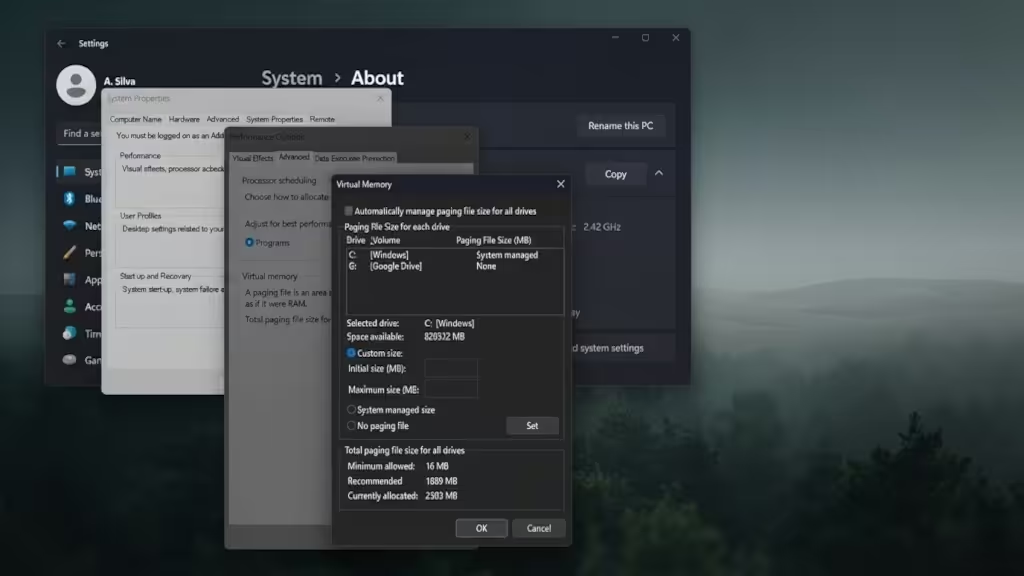
Is your PC slow, freezing, or closing programs because it runs out of RAM? You do not need to buy new memory to get relief. Windows can borrow space from your internal drive and use it as extra memory, and you choose exactly how much. It works on every kind of internal storage: old mechanical hard drives, SATA SSDs, eMMC and the latest NVMe drives. In this simple guide you will find your drive type, pick the right size for it, and set it up yourself in about 10 minutes.

The Idea in 30 Seconds
Think of RAM as your desk: fast, but small. When the desk is full, you put papers you are not using into a drawer. The drawer is slower to reach, but it keeps everything from piling on the floor. Your internal drive can be that drawer. Windows calls it the paging file or virtual memory, and it is already built in. You are simply going to make the drawer as big as you want.
-
You save money: no new RAM sticks needed.
-
You decide the size: 4 GB, 16 GB, 32 GB or more, whatever your drive can spare.
-
Any drive works: the faster your drive, the better the result. Even an old mechanical disk gets a real safety net.
The same steps work on Windows 11, 10, 8 and 7, so older PCs from the last 20 years can use this guide too.
Step 1: Find Out What Drive You Have
The drive type decides how big the "drawer" should be and how fast it will feel. Two easy ways to check:
-
Task Manager: press Ctrl + Shift + Esc, click Performance, then click your Disk entry. The type (HDD or SSD) and model appear in the top right.
-
PowerShell: right-click Start, open Terminal (Admin) and run
Get-PhysicalDisk | Select FriendlyName, MediaType, BusType. A BusType of NVMe means an NVMe drive, SATA with MediaType SSD means a SATA SSD, and SATA with HDD means a mechanical disk.
Step 2: Know Your Drive
Speeds are typical real-world figures. Latency is how long the drive takes to start finding data, and it matters a lot for virtual memory.
| Drive type | Typical speed | Reaction time | How it feels as extra memory |
|---|---|---|---|
| IDE / PATA hard drive (about 2000 to 2008) | 40 to 80 MB/s | 10 to 15 ms | Slow. Safety net only. |
| SATA hard drive (5400, 7200 or 10,000 RPM) | 100 to 200 MB/s | 8 to 12 ms | Slow but helpful. Prevents crashes. |
| SSHD hybrid (hard drive with a small flash cache) | 100 to 200 MB/s | Slightly better than HDD | Treat it like a hard drive. |
| eMMC (soldered storage in budget laptops and tablets) | 50 to 250 MB/s | Fast to react, weak under load | Works, but use a modest size. |
| SATA SSD (2.5", mSATA, M.2 SATA) | Up to about 550 MB/s | About 0.1 ms | Very good. Big difference over a hard drive. |
| NVMe SSD (M.2, PCIe Gen 3, 4 or 5) | 3,000 to 7,000+ MB/s (Gen 5 over 10,000) | About 0.02 to 0.05 ms | Excellent. The best option available. |
| Intel Optane (NVMe, rare) | Similar to NVMe | Extremely low | Excellent and very durable. |
Do not use USB sticks, SD cards, external USB drives or network drives for this. They are slow, they can disconnect, and Windows may not even offer them in the list.
Step 3: Pick Your Size
No single number is correct, so this is your decision. First, look at the free space on your drive and decide how much you are happy to give. Keep at least 15 to 20 percent of the drive free. Then use this table as a friendly starting point. Sizes are typed in MB (1 GB = 1024 MB).
| Your RAM | Hard drive (HDD / SSHD) | eMMC | SATA SSD | NVMe |
|---|---|---|---|---|
| 4 GB | 6144 | 4096 | 8192 to 12288 | 12288 to 16384 |
| 8 GB | 8192 to 12288 | 8192 | 16384 to 32768 | 32768 or more |
| 16 GB | 8192 to 16384 | 8192 | 16384 to 32768 | 32768 or more |
Quick rule: your total memory = your RAM + the size you choose. With 8 GB of RAM and 32768 MB chosen, Windows has about 40 GB to work with.
Tips for Your Type of Drive
-
Hard drives (IDE, SATA, SSHD): Type the same number in Initial and Maximum so the file never has to grow or shrink while you work. Think of it as a safety net: it stops crashes, but do not expect speed. If you can, run Optimize Drives once before setting it. Have two physical drives? You can put a paging file on each, and Windows uses the one that responds first, so the quieter second drive can help (Microsoft). Keep one on the Windows drive.
-
eMMC: This storage has lower write endurance than a normal SSD and slows down when nearly full. Choose a modest size, keep at least 20 percent of the drive free, and avoid very large values on 32 GB or 64 GB models.
-
SATA SSD: The sweet spot for most people. Use a generous size, with a smaller Initial and a bigger Maximum if you like. You do not need to defragment an SSD.
-
NVMe: You gain the most here. With thousands of MB/s and tiny reaction times, extra virtual memory feels almost seamless for everyday work. Go big, keep the drive cool and its firmware updated, and leave 15 to 20 percent free. Microsoft's own studies found Windows reads this file about 40 times more often than it writes to it, which is gentle on flash storage (Microsoft).
Step 4: Set It Up
-
1. Open the settings window: Press Windows Key + R, type
sysdm.cpland press Enter. -
2. Go to Performance: Click the Advanced tab, then Settings... in the Performance box.
-
3. Open Virtual Memory: Click the Advanced tab again, then Change...
-
4. Turn off automatic: Uncheck "Automatically manage paging file size for all drives".
-
5. Choose your drive: Click the drive you picked (usually C:) and select Custom size.
-
6. Type your numbers: Fill in Initial size and Maximum size in MB, using Step 3 and the tips for your drive.
-
7. Save: Click Set, then OK on every window, and restart your PC.
Important: do not choose "No paging file". Windows needs it to stay stable and to save error reports if it ever crashes.
Step 5: Check That It Worked
-
Press Ctrl + Shift + Esc, click Performance, then Memory.
-
Look at the box called Committed. It shows two numbers, like
7.5/39.8 GB.
How to read it: the first number is the memory your programs use right now. The second is your total memory budget (RAM plus your extension). While the first stays well below the second, your PC is comfortable.
A Real Example
One 8 GB memory stick plus a large extension on an SSD, running perfectly:

-
Committed 7.5/39.8 GB: programs use 7.5 GB, but about 40 GB is available. Lots of breathing room.
-
Available 2.6 GB: free RAM ready for new programs.
-
Result: a lighter, smoother PC with no money spent on RAM.
Be Realistic and Stay Safe
-
This extension gives you room, not the speed of real RAM. The faster your drive, the less you notice the difference.
-
On a hard drive, if the disk light stays on and the PC crawls, close a few programs or browser tabs. You are asking for a lot at once.
-
Need more room later? Repeat Step 4 and type a bigger number. You can change it any time.
How to Go Back to Normal
Return to sysdm.cpl → Advanced → Settings → Advanced → Change..., tick "Automatically manage paging file size for all drives", click OK and restart. Windows returns to its defaults.
Quick Fixes
-
"Your system is low on virtual memory" message: choose a bigger size in Step 4.
-
Windows will not accept my number: check the drive has that much free space.
-
Nothing changed: make sure you restarted the PC after saving.
 Shaun Royce
Editorial Senior
Windows Optimization Report
@ ebits.icu